How to Find Outdated Content on Your Website, Without Building a Spreadsheet
To find outdated content on your website, sort every published post by the date it was last touched and read the oldest band first. That one signal exists on every site, needs nothing connected, and puts the posts most likely to be wrong at the top of the list.
Two different searches share this phrase. If you came here to get a page that no longer exists out of Google's results, that is a different job, and Google has a tool for it: Refresh Outdated Content. It handles one URL per request, and Google's own help page tells site owners to ask for a recrawl instead. This guide is the other search: your own posts, on your own WordPress site, from the first inventory to the first batch.
The obstacle here has never been the concept. It is the afternoon the inventory takes, and the fact that it is stale again by the next campaign.
What your analytics can and cannot see
Search Console and Google Analytics 4 only know the pages that were shown or clicked. A post that gets neither never appears in either export. It is not a small gap: it is exactly the category you are looking for.
Search Console reports the queries your pages appeared on. GA4 reports the sessions they received. Both measure demand. Neither holds an inventory of what you published. So the posts that have gone quiet, the ones that have slipped far enough that nobody clicks them anymore, produce zero rows in both tools and drop out of any sort built on those exports.
That is the structural blind spot of the spreadsheet method below, and it is worth stating plainly before you spend a day on it: the sort you end up with describes the posts that still work. The slow loss of search visibility on a page nobody has touched has a name, content decay, and by the time it is complete the page has left your data entirely.
A tool that lives inside WordPress starts from the opposite end. It reads the post table, so it sees every published post, clicked or not.
The manual method, honestly described
It works, it is free, and it gives you something the age sort cannot: real traffic data. It costs about half a day for a few hundred URLs, and it is out of date the moment you save it.
The method people actually run, in four steps:
- Get the list of every URL. Crawl the site, or take your sitemaps and pull the addresses out of them.
- Export Search Console over the longest period it offers, with clicks, impressions and average position per page.
- Export GA4, organic sessions per landing page, over twelve months.
- Merge the three on the URL, with VLOOKUP or its equivalent, and sort by whatever combination of decline you trust.
Two things to know before you start. The first is the time: the merge itself is quick, the cleanup is not, and URLs that do not match across three exports are where the afternoon goes. The second is the blind spot above. Both exports are keyed on pages that had traffic, so the rows you most want are the rows that are missing.
Run it when you need to know which posts are declining rather than which are old, because no inventory-side signal can tell you that. Run the age sort first when you need to know where to start, which is most of the time.
The signal that works on every site, and a threshold you can defend
Every WordPress site already stores, for every post, the date it was last modified. It needs no connection, no export and no account, and it is the only signal in this guide that covers one hundred percent of your published posts.
Be precise about what it proves. A stale last-modified date means nobody has been back to the post. It does not mean the post is wrong. And the reverse holds too: fixing one typo resets the date without changing a single fact. It is a sorting signal, not a verdict, which is why what happens after the sort is reading, not deleting.
The threshold. Unstale treats a post as stale after 180 days by default, and you can set that anywhere from 7 days to ten years in the plugin settings. There is nothing sacred about 180: it is one publishing cycle, long enough that a post has stopped being current and short enough that you find it before your readers do. Pick your own and the bands below move with it.
The bands. The screen splits whatever threshold you set into three, so the list arrives already ranked instead of as one long column.
| Band | With the default threshold | What it usually means |
|---|---|---|
| T to 1.5T | 180 to 270 days | Worth a look on your next pass |
| 1.5T to 2T | 270 to 360 days | Figures and examples are probably stale |
| 2T and over | Over 360 days | Read these before anything else |
For comparison, the only public number on this question comes from a Siteimprove guide last updated on November 23, 2021, which suggests three to six months without a single view as a deletion candidate, and flags anything older than three, five, ten or fifteen years. Useful, and nearly five years old itself, which is a fair illustration of the problem.
What the Content health screen shows, and what it does not
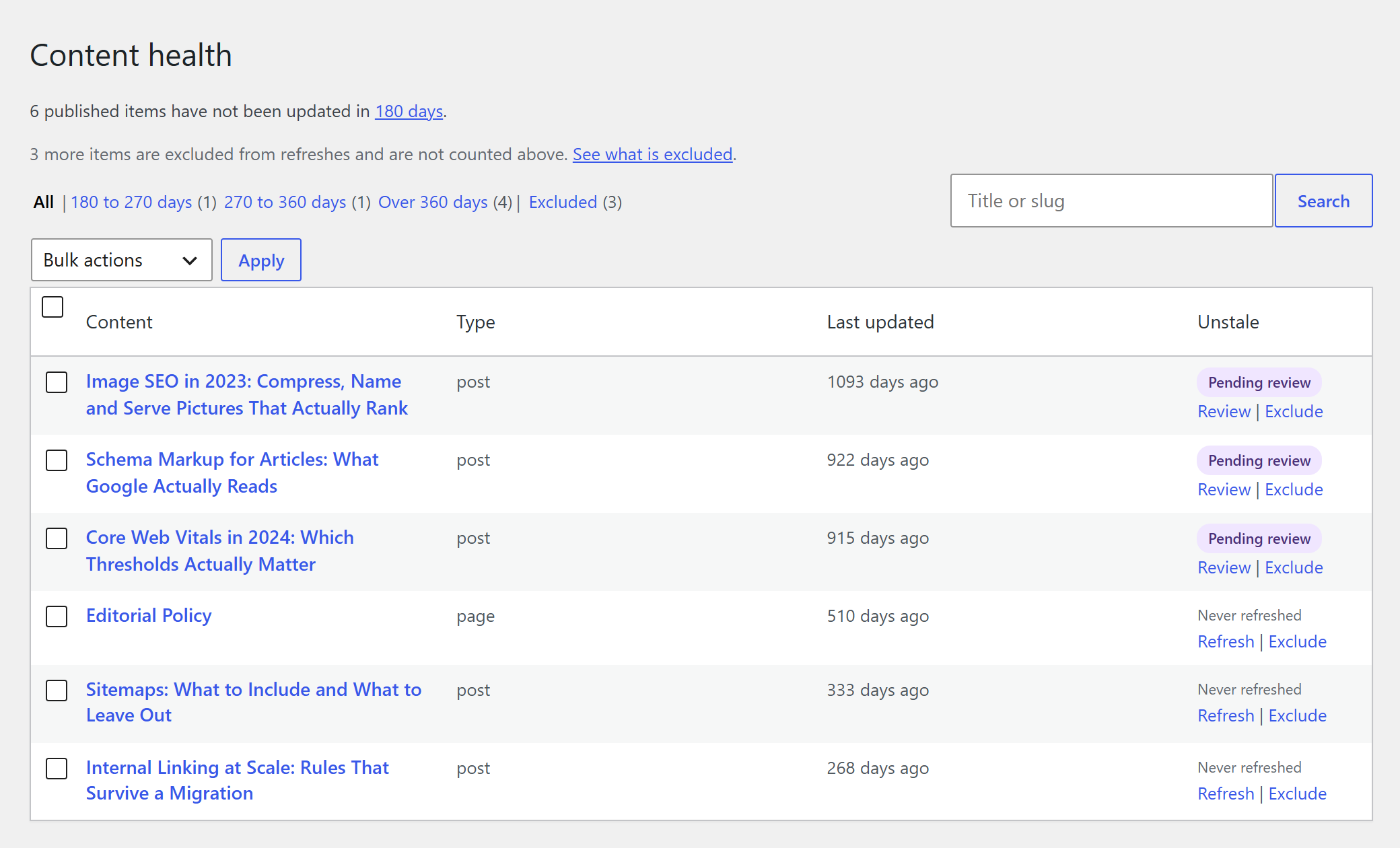
The free Unstale plugin adds one screen, Content health, and it is the inventory the exports cannot build. Four columns: the post, its type, when it was last updated, and its Unstale status. The three bands sit on top as tabs, each with its count. Twenty rows per page, or the whole window at once, and a search box that filters without reloading.
From there you select posts and act on them: queue them for a refresh, up to 50 at a time, or exclude the ones that should never come up again, which move to their own tab and can be put back. The whole screen works without a license.
Now the part most tool pages leave out.
- It measures no traffic at all. The free plugin is not connected to Search Console, and it does not pretend otherwise. For clicks, impressions and position, the spreadsheet above is still the way, and the two methods answer different questions.
- It scans up to 2,000 posts per window, and tells you when it hit that ceiling rather than quietly showing you a slice.
- It works from a scan it keeps for 12 hours, rebuilt as soon as any post changes, so a large site does not pay for a full table sort on every page load.
- It only lists what you are allowed to edit. An editor and an administrator do not see the same screen, by design.
- It only counts real editorial content. Page builder templates, popups and floating buttons are posts as far as WordPress is concerned. They are not articles, and they stay out.
Keep, update or remove: where that decision belongs
Sorting is not deciding. The list tells you which posts have gone untouched the longest; it says nothing about which deserve an afternoon, which should be merged into a stronger post, and which should quietly leave the index.
That call has its own grid, built on Search Console signals rather than dates, in the main guide: refresh old WordPress posts. The choice between merging a weak post and removing it is its own question: prune or refresh. And once you know how many posts you are actually going to touch, you can price the job before you start it: what refreshing them would cost.
Questions people ask when they go looking for outdated content
How old does a blog post have to be before it counts as outdated?
There is no universal number. Unstale uses 180 days as its default and lets you set anything from a week to ten years. What matters more is the field: a plugin comparison ages in months, a piece on a stable technique can hold for years.
Can Google Search Console show me my outdated content?
For the posts that still get impressions, yes, and it is the better tool for those: it shows position sliding and clicks falling. For posts that get nothing at all, no. They produce no rows, so they never reach your export.
Does the last updated date mean the content is actually current?
No. The date records that someone saved the post, not that anyone checked it. A corrected typo resets it. Treat it as a way to order the queue, and read the post before you trust it.
How do I find outdated content on my website for free?
Two free routes. Export Search Console and GA4 and merge them in a spreadsheet, which costs time but adds traffic data. Or install the free plugin and read the Content health screen, which costs nothing and covers every published post, including the ones with no traffic.
What about posts that never got a single click?
They are the reason this guide exists. No analytics export will ever surface them, and they are usually the oldest and the least accurate things you have published.
Start with the oldest post you have
Install the free plugin from the WordPress plugin directory, open Content health, and click the last band. You now have your backlog in the order that matters, built from data your site already had, with nothing connected and nothing exported.
Read the post at the top. If its facts have moved, that is the one to fix first, by hand or with rewrite old posts with AI. Licensing, for the levels that need it, is on the pricing page.